Sign in
Signing in to HushChat takes two steps. First you prove who you are with your email address and password, then you say which workspace you want to open. The steps are the same on the web and in the mobile app.
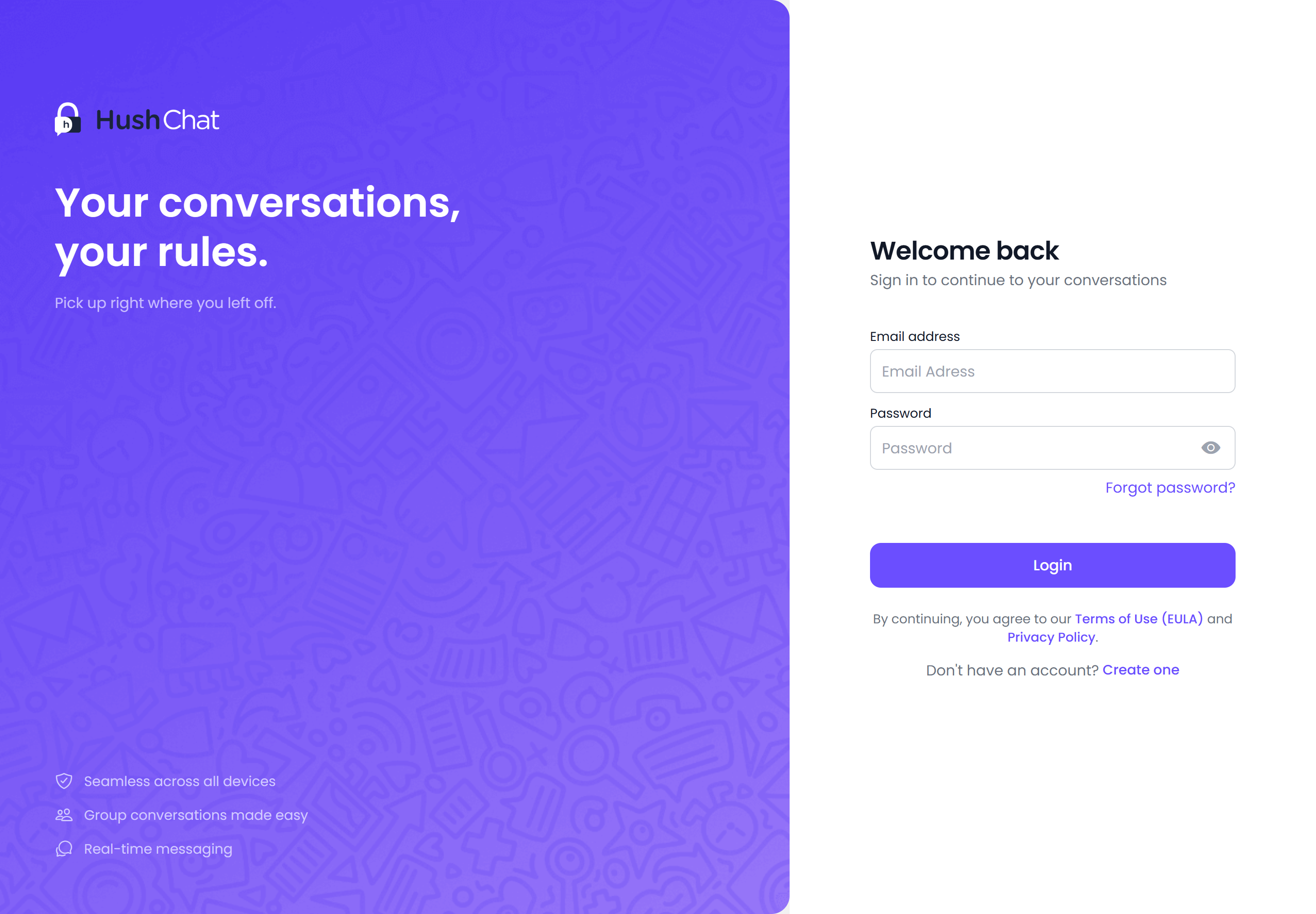
Step 1 — Sign in to your account
The sign-in screen is headed Welcome back, with the line "Sign in to continue to your conversations".
- Type your address in Email address.
- Type your Password.
- Select Login.
Underneath the fields there is a Forgot password? link, and at the bottom of the screen "Don't have an account?" with a Create one link that takes you to registration.
Below the button, HushChat notes that by continuing you agree to its Terms of Use (EULA) and Privacy Policy — both are links you can read before you sign in.
Step 2 — Choose a workspace
Once your credentials are accepted you land on Choose a workspace, described as "Enter your workspace name to continue, or create a new one for your team".
- Type the workspace name into Workspace name — the field prompts you with
Enter workspace name. - Select Continue.
You do not have to match the workspace's capitalisation: an exact match is preferred, and anything else is matched ignoring case.
Only workspaces you are a member of can be opened. If you cannot remember the name, ask a colleague who is already in it — it is the same name everyone there types.
The screen carries two more controls:
| Control | When it appears | What it does |
|---|---|---|
| + Create new workspace | Only if your account is allowed to create workspaces | Opens Create a workspace |
| Not you? Sign in with a different account | Always | Returns you to the sign-in screen |
After Continue, HushChat opens your conversations in that workspace.
When sign-in does not go through
| What you see | What it means | What to do |
|---|---|---|
| A message under the heading, such as "Login failed. Please try again." | The address or password was not accepted | Check both and try again, or use Forgot password? |
Invalid email address or Password must be at least 6 characters | The form itself rejected what you typed before sending it | Correct the field and select Login again |
| The Check your email screen opens instead of the workspace picker | Your account was never verified — the server answers "Please confirm your account." | Enter the 6-digit code, as described under Create your account |
No workspace found with that name | You are not a member of a workspace with that name, or it is spelled differently | Retype the name, or pick another workspace |
| "Your access to this workspace has been suspended. Please contact support." | Your membership of that workspace has been suspended | Contact whoever administers that workspace; other workspaces you belong to still open normally |
If your membership is still pending
If you have been added to a workspace but have never finished joining it, Continue does not open conversations. It sends you to the Register form instead, where you fill in your first name, last name and username for that workspace. Complete it once and you go straight through from then on.
A suspension applies to one workspace, not to your whole account. Sign in as usual and choose a different workspace name at step 2.
After you are in
Your workspace choice is remembered, so the next time you open HushChat you do not have to type it again. To move to another workspace without signing out, see Choose or switch workspace.
If you have no account yet, start with Create your account. If the password is the problem, see Reset your password.