Call history
Every call that ends is recorded, answered or not, and the Calls screen is where you read that record back.
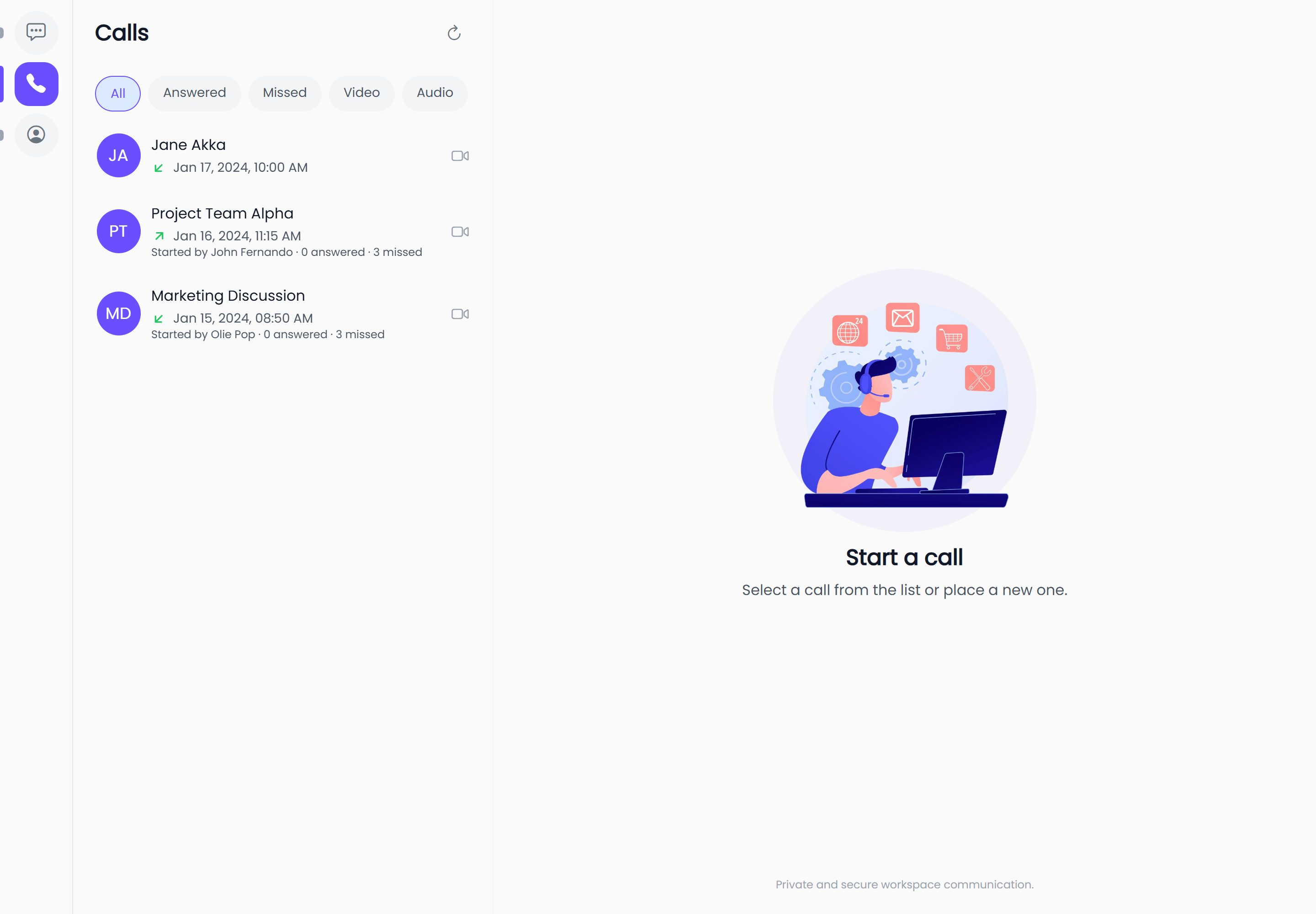
Where to find it
| Platform | How to get there |
|---|---|
| Web | Select the phone icon in the left sidebar — hovering it labels it Calls |
| iOS and Android | Open the Calls tab |
The screen is titled Calls. On a wide web window the list sits in a panel on the left, with a Start a call prompt filling the space beside it. On phones and narrow windows the list fills the screen.
The list is yours. It shows the calls you took part in — the ones you placed, and the ones you were rung for. There is no workspace-wide call log, so administrators cannot review anyone else's calls from here.
Reading a row
Each row is one call.
| Part of the row | What it tells you |
|---|---|
| Avatar and name | The other person for a direct call, or the group name for a group call |
| Arrow | Which way the call went, and whether it connected |
| Time | When the call started, as a relative time |
| Icon on the right | Whether it was an audio or a video call |
The arrow carries two pieces of information at once — its direction and its colour:
| Arrow | Meaning |
|---|---|
| Green, pointing up and away | You placed the call, and it connected |
| Green, pointing down and in | Someone called you, and it connected |
| Red | The call was missed or declined — the direction still shows who placed it |
A call that was cancelled before anyone answered is not marked red.
Group calls in the list
A group call gets an extra summary line under the time, so you can see how a group call went without
opening anything. It names who started the call, then counts the outcome across everyone who was
rung — how many answered and how many missed.
Someone who was rung and never picked up counts towards the missed total, as does someone who declined.
Calling back
The phone or camera icon at the end of a row is a button. Selecting it starts a fresh audio call to that same conversation — including for a row marked with the camera icon, which tells you what the old call was, not what the new one will be.
Calling back from a group row rings the whole group again, subject to the same group size limit as starting a call normally.
To place a video call instead, open the conversation and use the camera button in the conversation header. See Start a call.
If audio calling has been turned off for your workspace since the call was made, the call-back stops
with This call type is disabled for your workspace.
Loading more, and refreshing
The list loads a page at a time and fetches the next page as you scroll towards the bottom — a spinner at the end of the list means more is on the way. Keep scrolling and older calls keep arriving until you reach the beginning of your history.
On iOS and Android, pull the list down to refresh it.
When the list is empty
A brand new account, or one that has never been on a call, sees the placeholder
No conversations yet in the middle of the screen. It is the app's general empty-list wording rather
than anything specific to calls — the list is simply empty. Place or answer a call and the first row
appears once that call ends.
If something goes wrong fetching the history, an error message replaces the list instead. Refresh to try again.
What is and is not recorded
| Recorded | Not recorded |
|---|---|
| Calls you placed, answered, declined, or missed | Calls between other people |
| Whether the call was audio or video | What was said, or anything from inside the call |
| When the call started, and how it ended | Screen shares, mutes, and camera toggles during the call |
A short summary of each call is also left in the conversation itself, in the message timeline, where it stays alongside the messages. See During a call.