Admin tools overview
Everything an administrator can do lives behind one entry point per platform. This page tells you where that entry point is, what is behind it, and why you may not be able to see it at all.
The admin tools are for workspace administrators only. If you hold any other role, the entry point is not drawn for you, and typing the address by hand does not get you in either.
The two entry points
There is one on each platform, and they are not the same shape.
| Platform | Entry point |
|---|---|
| Web | A gear icon at the bottom of the left navigation rail. It opens Settings, which has its own sidebar of admin sections. |
| iOS and Android | An Admin tab in the bottom tab bar. It opens a list of admin sections. |
Both are hidden from non-administrators. On the web the gear is simply not drawn unless you are an administrator; on mobile the Admin tab is only added to the tab bar for administrators, and only on a phone or tablet — it is not a web tab.
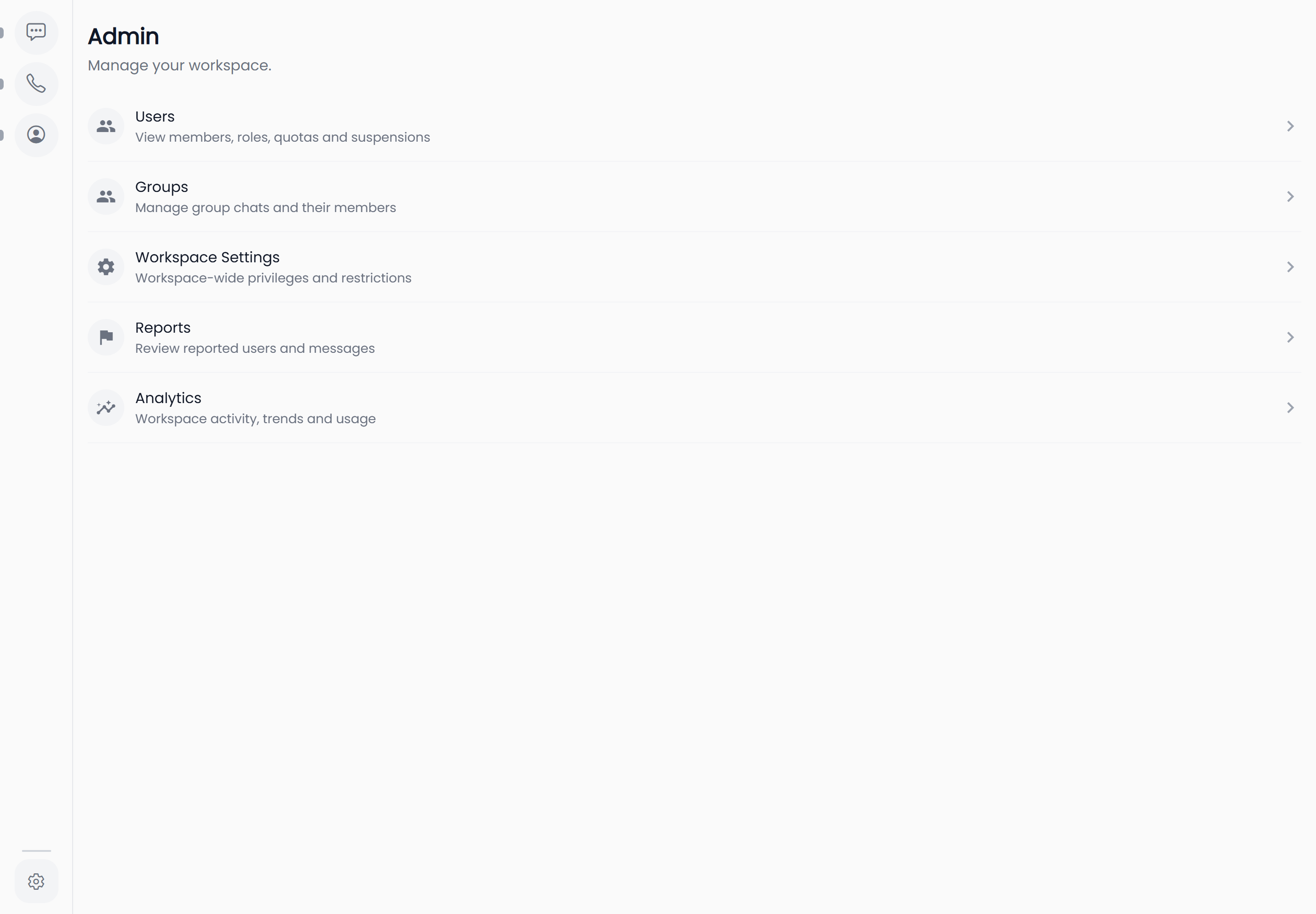
The mobile hub is headed Admin and subtitled "Manage your workspace."
What is behind it
The mobile Admin hub lists five sections. Each one carries a one-line description in the app:
| Section | What the app says it covers |
|---|---|
| Users | View members, roles, quotas and suspensions |
| Groups | Manage group chats and their members |
| Workspace Settings | Workspace-wide privileges and restrictions |
| Reports | Review reported users and messages |
| Analytics | Workspace activity, trends and usage |
The web Settings sidebar carries the same five — and one more.
The web sidebar has an Invite entry; the mobile Admin hub does not. The web list is Invite, Users, Groups, Workspace Settings, Reports, Analytics. Inviting people is therefore a browser-only job. Everything else is available on both platforms.
On the web, selecting a sidebar entry swaps the panel next to it — you stay on the Settings screen throughout. On mobile, selecting a row pushes a full screen with a back button.
Which section do I want?
- Someone needs adding, re-roling, suspending, a bigger upload allowance, or removing — Users. Everything about one individual person is on that person's screen, reached by selecting them in the list.
- Something should change for the whole workspace — Workspace Settings. Conversation deletion, Customer mode, calling and screen sharing, the default upload limit, IP restrictions and API tokens.
- A group chat needs looking at — Groups.
- Somebody reported a user or a message — Reports.
- You want numbers — Analytics.
- You want to bring in a new person — Invite, on the web.
Settings is the administrator area. Workspace Settings is one section inside it. If you are looking for the workspace-wide switches, you want the second one — see Workspace settings overview.
If you are not an administrator
Two different things happen, depending on how you arrived:
- You will not find the admin screens by looking. The web gear and the mobile Admin tab are not drawn for non-administrators, so there is nothing to select.
- Following a direct link sends you back to your chats. The admin routes are guarded. Rather than showing you an error or an empty screen, HushChat redirects you to the conversations screen. If a colleague sends you a link to an admin screen and you land on your chat list instead, that is the guard doing its job — you are not an administrator in that workspace.
The mobile Admin hub has a second guard behind the hidden tab, which shows "You do not have permission to access this screen." Either way, the answer is the same: ask an administrator of the workspace to make the change for you, or to give you the Admin role.
Your own profile settings are somewhere else
The Profile tab holds the things that are about you rather than about the workspace — editing your profile, your blocked users, changing workspace, contacting support, and deleting your account. Those are open to everyone and are not part of the administrator area, even though some of them sit at similar addresses.
What administrators cannot do
HushChat has no screen, export or search that shows you a history of administrator actions. You cannot look up who changed a role, who suspended whom, or when. Analytics is a workspace-wide summary of usage, not a per-person action history, and Reports covers only what people have reported to you.
There is also no list of outstanding invitations anywhere in the product — see Invite people for what that means in practice.
Where to go next
- The order to do all of this in: Company setup, end to end
- What each role can reach: Roles and permissions
- Bringing people in: Invite people
- The workspace-wide switches: Workspace settings overview