Invite people
Bringing somebody into your workspace is a two-part job that you only do half of. You add their address to the workspace; they finish the registration themselves.
Invite is web-only. It is an entry in the Settings sidebar in a browser. It is not in the Admin tab on iOS or Android, so do your inviting from a browser. Administrators only.
Send the invitations
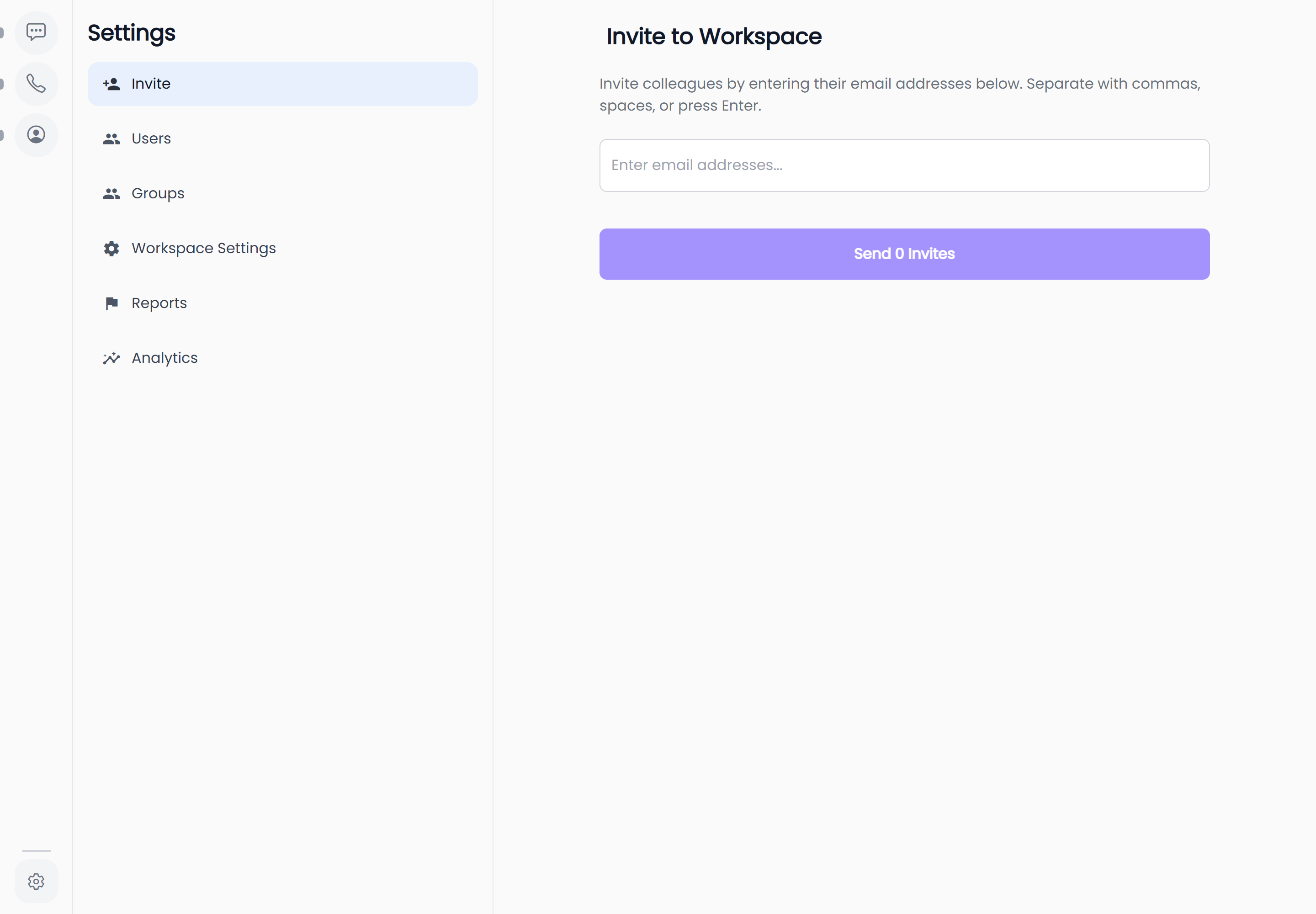
- In a browser, open Settings (the gear at the bottom of the navigation rail), then Invite.
- The screen is headed Invite to Workspace and tells you: "Invite colleagues by entering their email addresses below. Separate with commas, spaces, or press Enter."
- Type an address into the box — its placeholder reads Enter email addresses... Each address turns into a chip as soon as you separate it, so you can queue up a whole team in one go. Semicolons work as a separator too.
- Remove a chip with the × beside it. With the text box empty, Backspace deletes the last chip.
- Select the button, which counts what you have queued: Send 1 Invite, Send 4 Invites, and so on. It stays disabled until there is at least one chip.
Invites sent successfully! confirms it, and the box empties. A failure shows Couldn't send invites with "Please try again."
Only something that looks like a valid email address turns into a chip. If you paste a list and one entry just vanishes, it was malformed — check it rather than assuming it went through. Duplicates are dropped the same way: an address already in the box will not be added a second time.
Limits and repeats
- 100 addresses per send. Going over shows Maximum 100 invites allowed, and the server enforces the same ceiling. Send in batches if you are onboarding a large team.
- Case and spacing do not matter. Addresses are trimmed and lower-cased before they are stored, so two spellings of the same address count as one.
- Re-inviting someone already in the workspace does nothing. They are silently skipped — no error, no duplicate, and no second invitation. That is true whether they are a full member or still an unfinished invitation from last week, so a hopeful re-send is not a way to nudge anyone.
You cannot choose a role while inviting
There is no role picker on the invite screen. Everybody arrives on a default role and you change it afterwards, from Settings → Users → the person → Role.
The default depends on one workspace-wide switch:
| Customer mode | New invites arrive as |
|---|---|
| Off (the default) | Member — sees everyone, like any ordinary colleague |
| On | Customer — sees only the agents assigned to them |
This is the most common setup mistake. With Customer mode on, every address you invite from that moment arrives already holding the Customer role and needs nothing more than an agent assignment. Invite them first and they arrive as ordinary members who can see your whole company, and you must re-role every one of them by hand. See Company setup, end to end.
Turning Customer mode on affects future invitations only. Nobody already in the workspace is re-roled by it.
What happens on their side
Sending an invitation creates a pending membership of your workspace against that address. Nothing else happens automatically, and the invitee is not moved into your workspace until they act.
They complete it themselves:
- They sign in — or create an account, if they do not have one.
- On the Choose a workspace screen they type your workspace's name.
- Because their membership is still pending, HushChat routes them into registration instead of straight into the chats, and they fill in their own details.
- The moment they finish, their membership becomes active, and they appear in your Users list.
No invitation message is sent to the address you entered. Tell the person yourself — and tell them the workspace name, exactly as it is spelled, because that is what they have to type on the Choose a workspace screen. Without it they have nothing to go on.
You get no confirmation an invitation is outstanding
This is worth being blunt about, because the product gives you no hint of it.
HushChat has no screen, anywhere, that shows invitations you have sent. The Users list only contains people who have finished registering, so an invitation sent five minutes ago and one that was never opened look identical from your side: absent. You cannot see one, cancel one, or resend one.
What that means day to day:
- The success toast is the only receipt you get. It confirms the addresses were accepted, not that anybody received or acted on anything.
- Confirm with the person directly. A message or a call is the only reliable way to know your invitation landed.
- Watch the Users list. Somebody appearing there is the one solid signal that they completed registration.
- A typo is unrecoverable but harmless. A mistyped address creates a pending membership nobody will ever claim. You cannot delete it, but it does nothing — it grants no access, and it will not appear anywhere. Simply invite the correct address.
After they arrive
Once the person shows up in Users, finish the job:
- Set their role if the default is not what you want — see Roles and permissions.
- If they are a customer, assign them to one or more agents, from their own screen under Assigned Agents.
- Give them a personal upload allowance, or leave them on the workspace default.
Where to go next
- What the roles mean: Roles and permissions
- Where the rest of the admin tools live: Admin tools overview
- The whole setup in order: Company setup, end to end