Conversation info and media
Every conversation has an info panel behind its title. It is where the per-conversation settings live, and where you go to find a file somebody sent you three weeks ago.
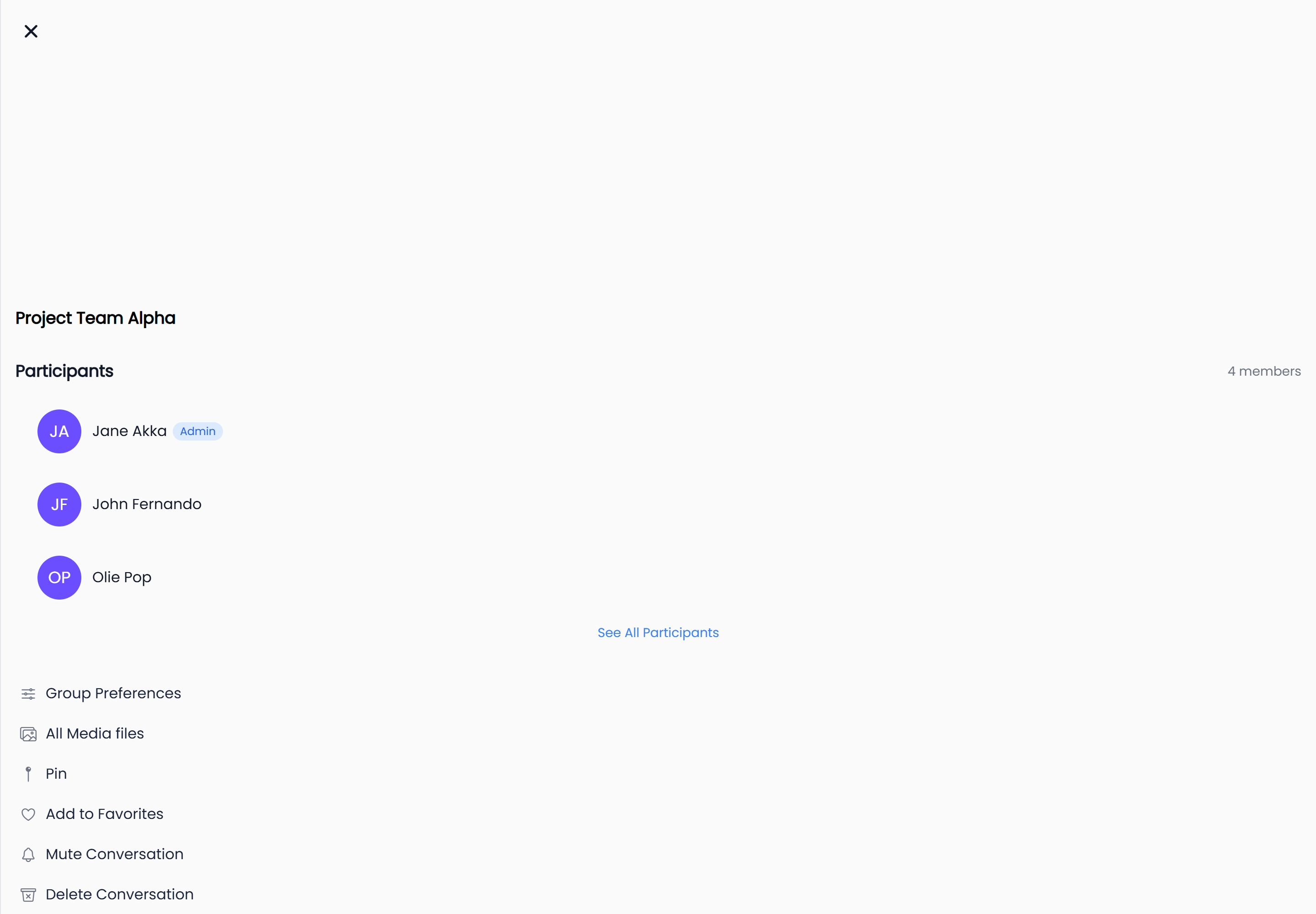
Open the info panel
- Open the conversation.
- Select the name or the avatar in the header at the top.
Web — the panel slides in on the right, beside the conversation you are reading.
iOS and Android — the panel opens as its own full screen, with a back arrow to return.
The top of the panel shows the conversation picture — or large initials where there is no picture — with the name underneath. On a phone-sized screen, three round buttons sit next to the name: search this conversation, jump back into the chat, and start a call.
While it loads you see Loading conversation.... If it cannot load, it says
Unable to load conversation details and offers a retry.
The actions in every conversation
These rows appear for both private chats and groups:
| Row | What it does |
|---|---|
| All Media files | Opens the attachments browser described below. |
| Pin / Unpin | Holds the conversation at the top of your conversation list. |
| Add to Favorites / Remove from Favorites | Adds it to the Favorites filter. |
| Mute Conversation / Unmute Conversation | Silences notifications. Muting asks how long for — see Organize your chats. |
| Delete Conversation | Removes the conversation from your list, after a confirmation. |
Delete Conversation is only present when the Allow conversation deletion setting is on for the workspace. With it off, the row does not appear for anyone.
Extra actions in a private chat
A one-to-one panel adds two rows in red, both naming the person you are talking to:
- Block followed by their name. HushChat asks "Are you sure you want to block this user?" before going ahead, and the row turns into Unblock with the same name afterwards.
- Report followed by their name. This opens a report form asking "Why are you reporting this
user?" — pick a reason, add any detail, and submit. HushChat confirms with
Report submitted. We'll review it within 24 hours.
Reporting is private. The person you report is not told, and the report goes to your workspace administrators.
For a group, the panel shows the participants, the group's settings, and the ways to add people instead. See the Groups section.
Browse the media and files
Select All Media files to open a screen titled Attachments, with two tabs.
Media
A grid of everything visual that has been shared, grouped under a heading for each month — the most recent month first. Select any tile to open it full size and page through the rest.
Docs
A list of the documents that have been shared. Each row shows a type badge — PDF, WORD, EXCEL, or
FILE for anything else — the file's name, its file type, and a download arrow. Select a row to open
or download the file.
Both tabs load more as you scroll, so a long history does not arrive all at once.
| What you see | What it means |
|---|---|
Loading attachments... | The list is still being fetched |
No media files yet | Nothing visual has been shared in this conversation |
No documents yet | No documents have been shared in this conversation |
Failed to load attachments | The list could not be fetched — go back and try again |
The back arrow on the Attachments screen returns you to the info panel rather than closing it, so you can dip into the files and come straight back to the settings.
The web side panel
On the web, the info panel shares its space with the other things HushChat shows beside a conversation — searching within the conversation, the full participant list, forwarding messages, the details of a single message, and poll results. Opening any of them replaces whatever the panel was showing; closing it gives the conversation the full width again.
The info panel has its own address on the web, so it survives a page reload and can be linked to. Closing it takes you back to your conversations.
On iOS and Android there is no side panel — each of these opens as its own screen and the back arrow returns you to the conversation.