The conversation list
The conversation list is your home screen in HushChat. Every chat you take part in — private chats and groups — appears in it, most recent first.
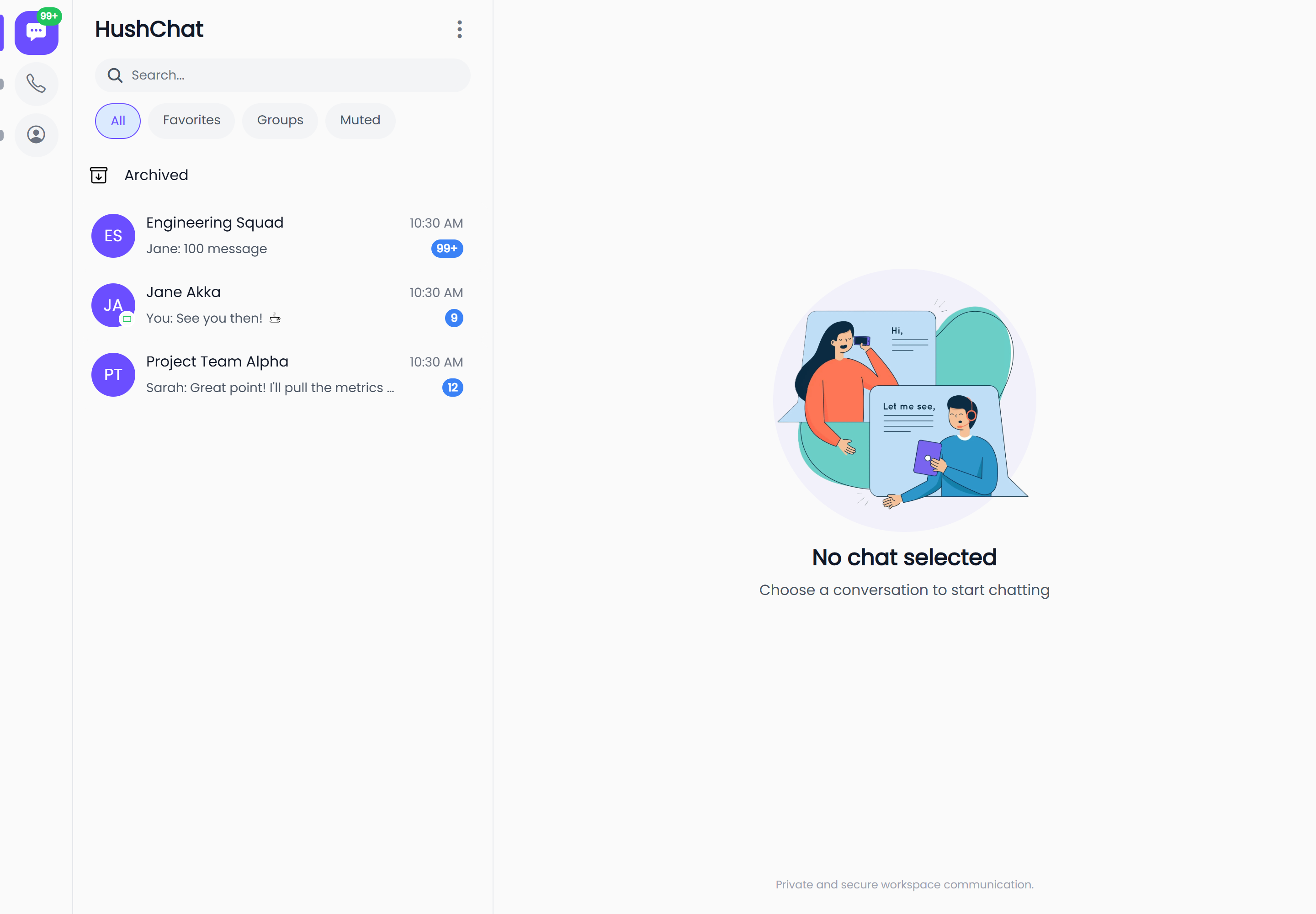
Where to find it
| Platform | Where the list lives |
|---|---|
| Web | The left-hand pane, always on screen next to the conversation you are reading |
| iOS and Android | The Conversations tab — the first screen after you sign in |
The heading above the list is the name of the workspace you are signed in to. If no workspace name is available, the heading reads Chats.
What a row tells you
Each row packs a lot into one line:
| Element | Meaning |
|---|---|
| Avatar | The other person's picture, or the group's. For private chats a dot on the avatar shows whether they are online. |
| Name | The person's name, or the group's name. |
| Suspended | A red badge next to the name. The person's account has been suspended by a workspace administrator. |
| Pin icon | You have pinned this conversation, so it stays at the top of the list. |
| Time | When the last message arrived — the clock time if it was today, Yesterday if it was yesterday, otherwise the date. |
| Preview | The first line of the last message. |
| Bell with a slash | You have muted this conversation. |
| Blue badge | How many messages you have not read. It counts up to 99+ and stops there. |
Where a person has no display name to show, HushChat falls back to Unknown User rather than guessing. It never shows an email address anywhere in the list.
Reading the message preview
The preview is written to tell you at a glance who said what:
- Your own last message is prefixed with
You:. - In a group, someone else's message is prefixed with their first name.
- A message with a file attached shows a paperclip and the word
Attachment. - A GIF shows a GIF icon and the word
GIF. - A conversation nobody has written in yet shows
No Messages Yet. - A message the sender has unsent shows the sender's name followed by
unsent this message— orYou unsent this messagewhen it was yours — in place of the original text.
The order of the list
The list sorts itself, and you cannot reorder it by hand:
- Pinned conversations come first, the most recently pinned at the top.
- Everything else follows by the time of its latest message, newest first.
Pinning is the one lever you have over the order — see Organize your chats.
Filters
A row of filter buttons sits above the list. Selecting one narrows the list; selecting it again is not needed — pick All to go back to everything.
| Filter | Shows |
|---|---|
| All | Every conversation you are part of |
| Favorites | Only the conversations you have added to favourites |
| Groups | Only group conversations |
| Muted | Only the conversations you have muted |
The search bar only appears while the All filter is selected. If search has gone missing, you are almost certainly on one of the other three filters.
An Archived row sits at the very top of the list while All is selected. Selecting it swaps the list for the conversations you have put away — see Organize your chats.
Keeping up to date
New messages arrive in the list on their own — you do not have to refresh. Two extras help on top of that:
- Pull to refresh. Drag the list down to force a reload.
- Endless scrolling. The list loads a page at a time and fetches the next one as you reach the bottom, so long histories stay fast.
If you have no conversations at all, the list says No conversations yet.
Who is typing
When someone is writing to you, a green typing line appears under their name at the top of the open conversation, followed by three animated dots.
| Situation | What it says |
|---|---|
| A private chat | typing |
| One person in a group | that person's name, then is typing |
| Two people in a group | both names, then are typing |
| Three or more in a group | the first name, then and 2 others are typing — the number grows with the crowd |
The indicator clears itself a few seconds after the person stops typing, so a stale "typing" never sticks around.
Peeking at someone without opening the chat
Select the avatar on a row — not the row itself — to open a profile card. It shows the picture, the
name, and whether the conversation is a Group Chat or a Private Chat. Selecting anywhere else on
the row opens the conversation as usual.
On the web, hovering a row reveals a chevron that opens the row's actions menu. On iOS and Android, swipe the row to the left to reveal the same actions. See Organize your chats.