Forward, copy, and message info
Moving a message somewhere else, taking a copy of it, and finding out who has read it.
Forward messages
Forwarding sends copies of one or more messages into other conversations, with an optional note of your own.
Pick the messages
- Open the menu on the first message and choose Forward message (Forward on mobile).
- The conversation switches into selection mode with that message already selected.
- Select any other messages you want to send along. Selecting a message again removes it.
A bar appears along the bottom of the conversation showing how many you have picked — for example
3 selected — with a Forward button and a close control. Clearing every message, or using the
close control, leaves selection mode.
Polls cannot be forwarded, so they cannot be selected either.
Choose where to send them
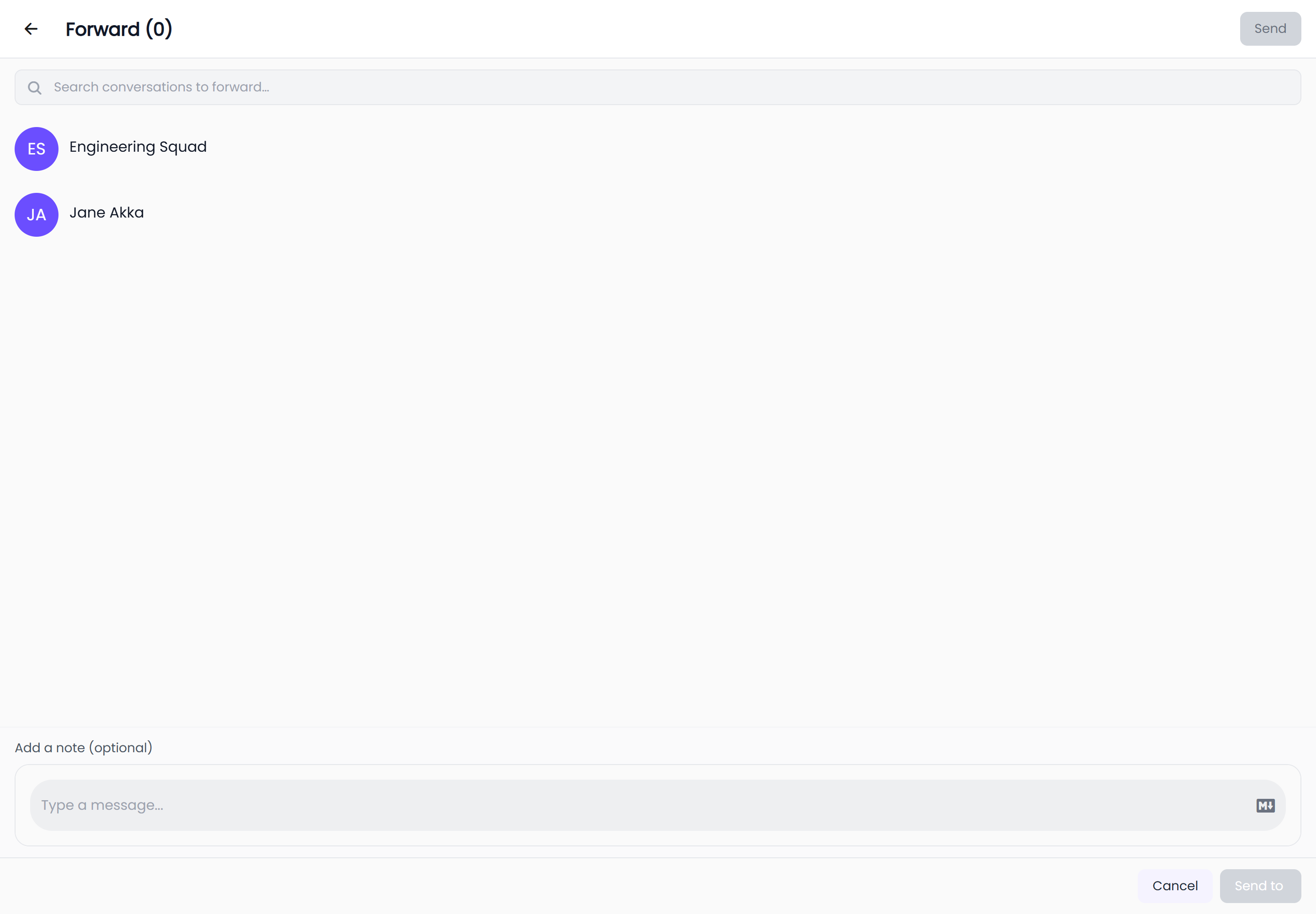
Selecting Forward opens the forwarding panel.
| Platform | What it looks like |
|---|---|
| Web | A panel beside the conversation, headed Forward messages with the number selected |
| iOS and Android | A screen headed Forward with the number selected |
Inside the panel:
- A search box prompting
Search conversations to forward…lists your conversations, and searches across chats and people as you type. The conversation you are forwarding from is not offered. - Each conversation you choose is added as a chip, so you can see and remove your picks.
- Add a note (optional) is a composer for a message to send along with the forwarded ones. It supports Markdown — see Formatting and Markdown.
Send with Send to and the number of targets on the web, or Send in the mobile header; both show "Sending…" while the forward is in flight. Cancel, or the back control, closes the panel and clears your selection.
After forwarding
- One target. HushChat opens that conversation for you, with the forwarded messages already there.
- Several targets. You stay where you are and a confirmation appears: Forwarded, "Sent to" and the number of chats.
If it fails, you are told "Couldn't forward message" and asked to try again — nothing is sent.
Forwarded messages carry a Forwarded label above the bubble in their new conversation.
A forwarded message cannot be edited afterwards. Send it as your own message instead if you expect to revise it.
Copy
| What you want | How to do it |
|---|---|
| The message text | Copy in the message menu on iOS and Android; the copy icon beside the message on the web |
| A link to the message | Copy Message Link in the web message menu |
| A link inside the message | Right-click it on the web and choose Copy link address |
| Formatted text as written | Right-click a Markdown message on the web and choose Copy text |
Copy Message Link puts a link to that exact message on your clipboard. Opening it takes you to the conversation and scrolls to the message, which makes it a good way to point a colleague at one specific thing.
Download an attachment
Download Attachment on the web, or Download on iOS and Android, saves the file attached to a message. It is offered on any message carrying a photo, video or document; GIFs are not downloadable this way. A download that fails reports "Couldn't complete action".
Mark as Unread
Mark as Unread is offered on other people's messages. Use it when you have opened something you do not have time to deal with yet: the conversation goes back to unread from that message, and HushChat returns you to your conversation list so the unread marker is where you left it.
Marking from partway down a conversation is more useful than marking the whole thing — reopen it later and the unread divider sits at the message you chose.
Who has read a message
Message Info is offered on your own messages and opens a Read By list of everybody who has seen that message.
| Platform | Where it opens |
|---|---|
| Web | A panel beside the conversation |
| iOS and Android | A screen of its own, with a back control |
Each row shows a person's avatar and name. Longer lists load more as you scroll. Before anybody has opened the message, the list reads "No one has seen this message yet.".
Read By is most useful in groups, where it tells you which members have caught up. In a one-to-one conversation the delivery indicator on the message already tells you the same thing.