Manage group chats
Groups is the administrator's view of every group chat in the workspace. From it you can search the groups, switch one off, change who is in it, and read its whole message history.
Groups is available to workspace administrators only — if you hold any other role the entry is not drawn for you. And there is no administrator view of one-to-one conversations: everything on this page applies to group chats, and a direct message between two people cannot be listed, opened or read from here. (A message somebody reports is the one exception, covered on the Reports page.)
Where to find it
| Platform | How to get there |
|---|---|
| Web | Open Settings from the sidebar, then Groups |
| iOS and Android | Open the Admin tab, then Groups |
Administrators also get a Groups entry in the web conversation sidebar's action menu, which goes to the same place.
The group list
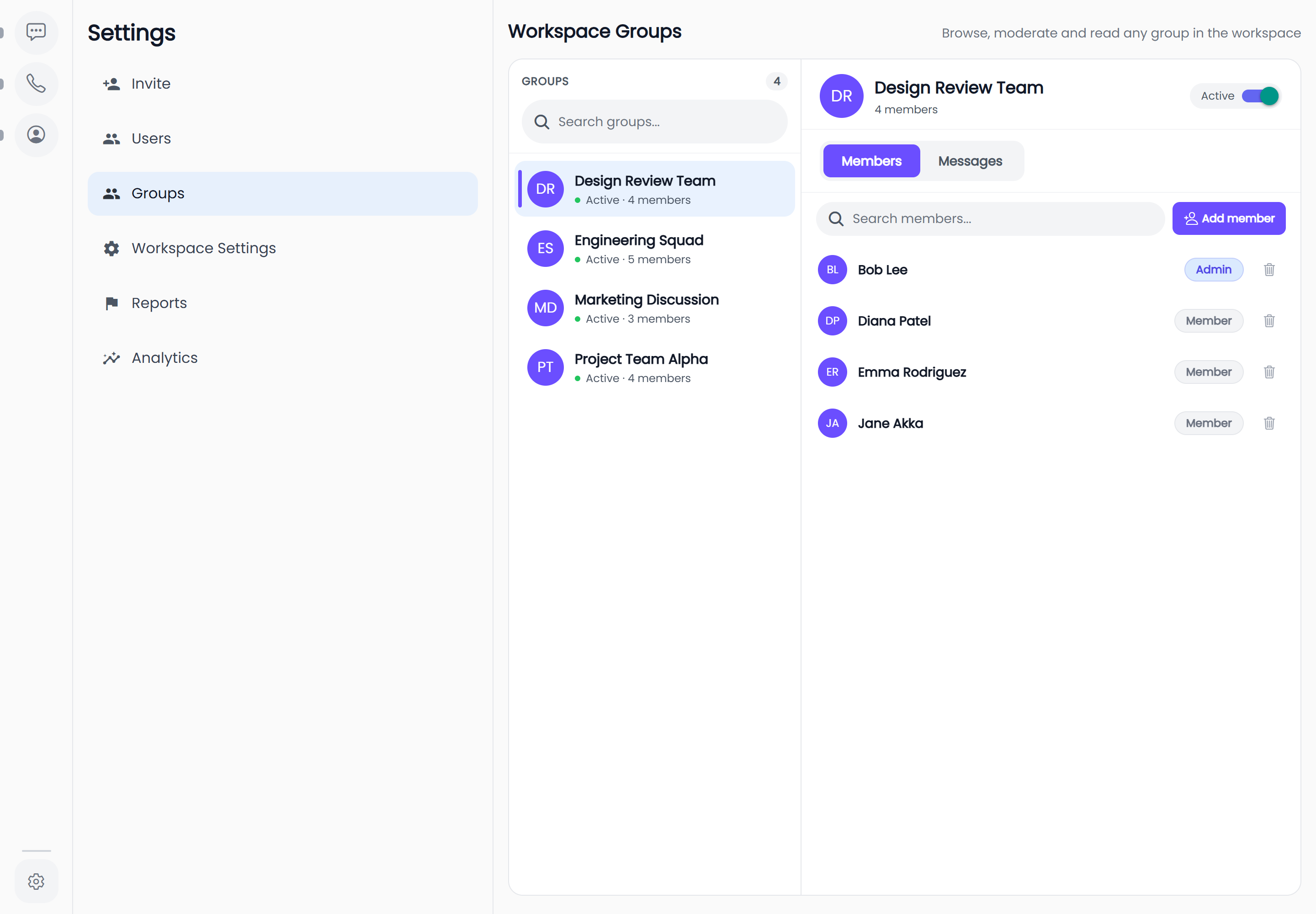
The screen is headed Workspace Groups, and on a wide browser window it carries the line "Browse, moderate and read any group in the workspace".
-
Every group in the workspace is listed, in alphabetical order, however many members it has and whether or not you are in it.
-
Search with the box prompting
Search groups.... It matches the group's name only — not members, not message content. -
More groups load as you scroll. On the web a count of the groups loaded so far sits beside the Groups heading.
-
If nothing matches you get No groups found.
-
Each row shows the group's picture and name, then its status and size, as in "Active · 12 members" or "Disabled · 1 member". A group with no name is listed as Unknown Group.
Web is a two-pane console: the list of groups on the left, the selected group open beside it, with the first group selected for you. Before you pick one the pane reads "Select a group to view its members and messages". iOS and Android show the list full-screen, and tapping a group pushes its own screen with a back button. What you can do is the same on both.
Active and disabled groups
The group's header carries a switch labelled Active or Disabled. Turning it off takes effect immediately — there is no confirmation step.
Members of a disabled group can no longer send messages in it. Anyone who tries is told "This group has been disabled by a workspace admin". Nothing is deleted: the group and its history stay exactly where they are, and turning the switch back on restores it. If the change cannot be saved the switch flips back and you get a Couldn't update group status notice. Disabling is not the same as deleting a group, and there is no delete button here.
The two tabs
Opening a group gives you its picture, name and member count, and a segmented control with two tabs. It opens on Members.
| Tab | What it is for |
|---|---|
| Members | Who is in the group — add, remove, and hand out group admin |
| Messages | The group's message history, read-only |
Members
The members tab lists everyone active in the group, with a Search members... box above it and an
Add member button beside it. More members load as you scroll. An empty search reads
No members found.
Each row carries the person's name and a pill reading Admin or Member.
Make someone a group admin
- Select the Admin / Member pill on their row.
- Confirm. Promoting asks "Are you sure you want to make {name} an admin of {group}?" under the heading Make Admin; demoting asks "Are you sure you want to change {name} to a member of {group}?" under Change to Member.
- The change is confirmed with Role updated successfully.
The last remaining admin of a group cannot be demoted or removed. The attempt simply fails, and you get a Couldn't update role or Couldn't remove participant notice rather than a specific explanation. Promote somebody else first.
Group admin is a group role, not a workspace one. Granting it gives no workspace-wide powers, and your own workspace-admin status does not make you an admin of any group.
Remove someone
Select the bin icon on their row. HushChat asks "Are you sure you want to remove {name} from {group}?" under Remove Participant, and confirms with Participant removed successfully.
Add members
- Select Add member. A panel headed Add Members slides in.
- Search in the box prompting
Add members…and select the people you want. They collect above the list as removable chips under Selected (n), with Deselect all beside it. - Select Add. It stays greyed out until at least one person is selected.
To put the entire workspace into the group in one go, select Add All instead — it acts immediately, with no confirmation. If the request fails you get a Couldn't add members notice and nobody is added. The picker only lists people who are not already in the group, so you cannot add anyone twice, and as a workspace administrator you can add people to a group you are not a member of.
Messages
The messages tab is the group's full history, oldest at the top, newest at the bottom, with day headings between them and each message showing its sender's name and the time it was sent. Older messages load as you scroll up. A sender whose name is missing shows as Unknown User, and an empty group reads No messages in this group yet.
A pill at the top of the transcript states plainly:
Read-only — viewing as admin
You cannot reply, react, forward, or mark anything read from here, and nobody in the group is told you are reading it.
On the web, the expand icon beside the read-only pill opens the transcript as a full-screen reader headed "{group} · Messages". Close it with the ✕.
Deleting a message
Despite the read-only pill, an administrator can delete any message in the group — it is the one write action the transcript allows. On the web, hover a message and select the bin icon on its right; on iOS and Android, long-press the message. HushChat asks you to confirm, under the heading Delete message:
"This message will be removed for everyone and shown as deleted by a workspace admin. This can't be undone."
Select Delete and it is confirmed with Message deleted; a failure reads Couldn't delete message. There is no time limit and it does not have to be your own message. Afterwards everybody in the group — not just you — sees it replaced with "This message was deleted by workspace admin {your name}". Your name is on it, so this is not a quiet removal. A message that has already been unsent offers no delete control.
HushChat records administrator actions internally, but there is no screen, export or search that lets you read them back. Analytics and Reports are what exist; a per-action trail of who disabled which group, or who deleted which message, is not viewable today.