Blocked contacts
Blocking someone cuts the direct line between the two of you. Neither of you can message the other one-to-one, and neither of you can start a new direct conversation. It is a private setting: the other person is never told.
Block someone from a conversation
The reliable route on every platform is the conversation's info panel.
- Open your one-to-one conversation with that person.
- Open the conversation info — select the header, or the info control.
- Scroll to the red actions at the bottom. One of them reads Block followed by the person's name.
- Confirm. The prompt asks "Are you sure you want to block this user?" — choose Cancel or Block.
Once blocked, the same row flips to Unblock followed by their name, so the info panel is also the quickest way to reverse it.
On iOS and Android there is a second route: press and hold the conversation in your list to open More Options, then choose Block User (or Unblock User). The web right-click menu on a conversation does not carry a block option — use the conversation info panel instead.
What blocking actually stops
| Blocked | Still true |
|---|---|
| Neither of you can send messages in your one-to-one conversation | The conversation stays in both your lists |
| Neither of you can start a new direct conversation with the other | Everything you both said before is still there |
| The blocked person stops receiving notifications from you | Group conversations you are both in are unaffected |
The block works in both directions and it does not matter who set it. If either of you has blocked the other, the composer in that conversation is replaced by the line "You can't send messages because this conversation is blocked."
Blocking is per person, not per conversation, and it does not remove anyone from a group. If you share a group with someone you have blocked, you will both still see each other's messages there.
Two blocks are refused outright: you cannot block yourself, and you cannot block the workspace's automated bot account.
Blocking someone also quietly files a report about them for your workspace's administrators to review. You do not have to fill anything in, and you are not asked to — it happens as part of the block. If you want to explain why, use Report followed by their name, the red action directly underneath Block in the same panel.
See who you have blocked
- Open your profile.
- Select Blocked contacts.
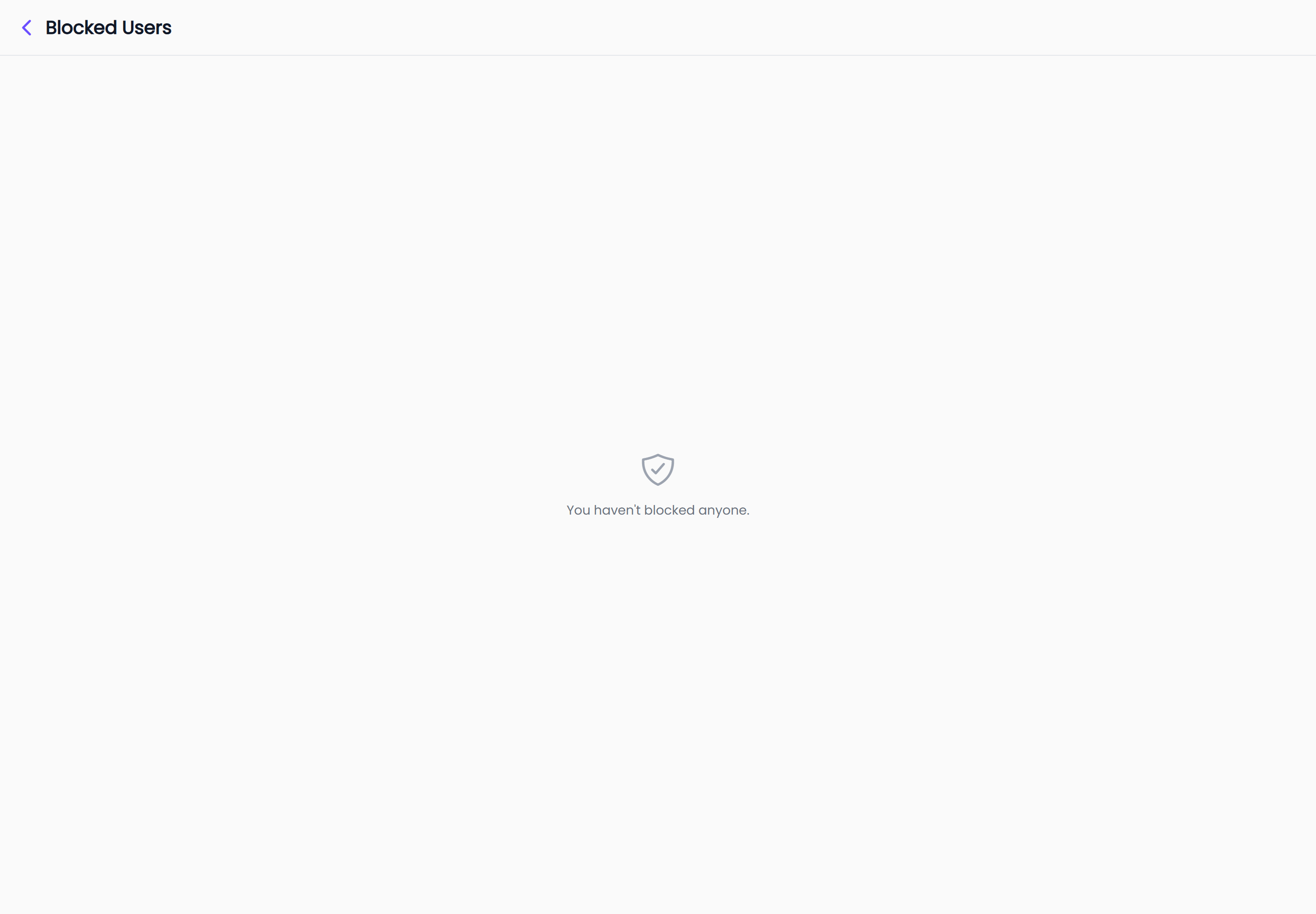
The screen is titled Blocked Users and lists everyone you have blocked, by name. If you have not blocked anyone, it says so — "You haven't blocked anyone." — rather than showing an empty list.
People are listed by name only. If a blocked account has no name on record, the row reads Unknown user.
Unblock someone
From the Blocked Users list:
- Find the person's row.
- Select Unblock on the right.
- The row disappears from the list once it succeeds.
From a conversation:
- Open the conversation info panel.
- Select Unblock followed by their name.
- Confirm — the prompt asks "Are you sure you want to unblock this user?", with Cancel and Unblock.
Unblocking takes effect immediately. The composer comes back in that conversation, and either of you can start a new direct conversation again. Nothing that was sent before the block is affected, and nothing sent during the block is delivered afterwards — those messages were never accepted in the first place.
If a conversation still looks blocked right after you unblock someone, reopen it. The banner is drawn from conversation details that refresh when the conversation is opened.