Edit your profile
Your profile is the name and photo everyone else in the workspace sees. The same screen holds your password, your availability, and the way out of the app.
Open your profile
| Platform | How to get there |
|---|---|
| Web | Select Profile in the sidebar |
| iOS and Android | Open the Profile tab |
Your name and photo sit at the top. Below them is a short list of rows:
| Row | Subtitle | What it opens |
|---|---|---|
| Profile | Name and photo | The Edit profile screen described below |
| Blocked contacts | Privacy | The people you have blocked |
| Change workspace | Switch to another workspace | The workspace picker |
| Help & contact | Contact us, support | The Contact Us form |
| Delete account | — | Closes your account for good |
| Log out | — | Signs you out |
Change workspace only appears when you belong to more than one workspace. If you are in a single workspace there is nothing to switch to, so the row is not shown.
Selecting the round photo at the top opens Edit profile as well, so you do not have to go through the Profile row to change your picture.
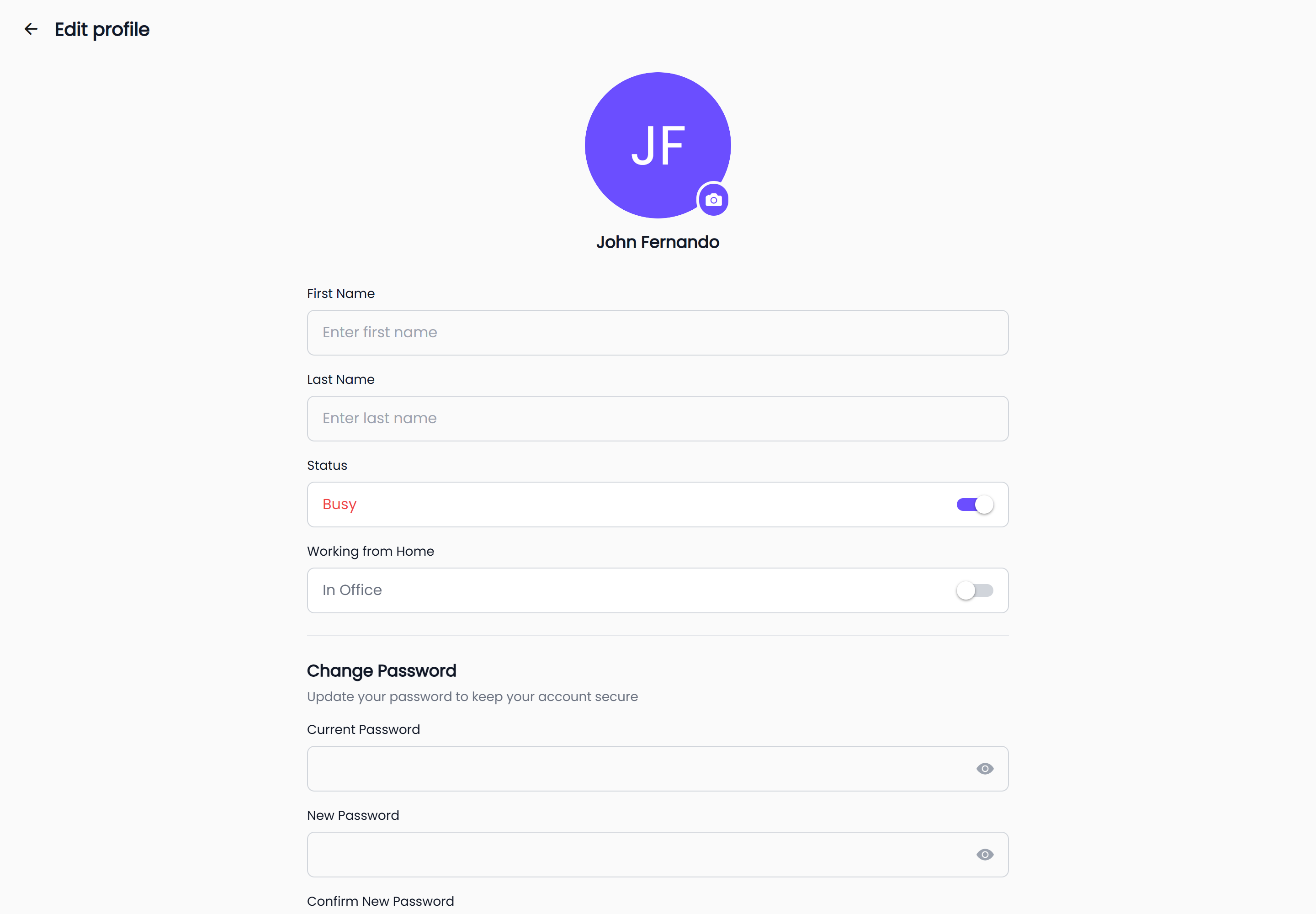
Change your name and photo
- Open your profile and select Profile. The screen is titled Edit profile.
- Select the round photo to pick a new image.
- Edit First Name and Last Name. Both are required — the screen prompts you with
Enter first nameandEnter last name. - Select Update Profile.
On the web you can drag an image file straight onto the photo instead of opening a picker. Profile photos are limited to 5 MB, and anything that is not an image is refused with a short explanation rather than uploaded.
Update Profile stays greyed out until you actually change something, and selecting it with nothing changed tells you there are no changes to update.
Set your availability
The Status section is a single switch. It reads Available or Busy, and the label changes colour with the state. There is nothing to save — flipping the switch updates your status straight away, so you can leave the screen immediately afterwards.
Say where you are working
Working from Home works the same way: one switch, reading Working from Home or In Office, saved the moment you flip it.
Change your password
The lower half of Edit profile is the Change Password section, described in the app as "Update your password to keep your account secure."
- Type your existing password into Current Password.
- Type the new one into New Password, then again into Confirm New Password.
- Select Update Profile — the same button saves your password and your name together.
Each box has an eye control on the right that reveals what you have typed, so you can check a password before submitting it.
Password requirements
As soon as you start typing in New Password, a Password Requirements: checklist appears underneath. Each line is red until you satisfy it and green once you do:
| Requirement |
|---|
| At least 6 characters |
| At least one uppercase letter |
| At least one lowercase letter |
| At least one number |
| At least one special character |
Two more rules apply when you submit:
- Your new password must be different from your current password.
- New Password and Confirm New Password must match.
The three password boxes are optional. Leave all of them empty and Update Profile only saves your name and photo. Fill any one of them and HushChat asks for the other two before it will save.
Log out
Log out sits at the bottom of your profile, in red. It asks to confirm first — the prompt is titled Log out? and warns "You'll need to sign in again to access your messages." Choose Cancel to stay signed in, or Log out to return to the sign-in screen.
Logging out clears the app's local copy of your conversations on that device. Nothing is deleted on the server, and everything comes back the next time you sign in. If you want to close your account rather than sign out, see Delete your account — that one cannot be undone.